 Bevios
macOS Native app for macOS 15 and later
Notes, tasks and meetings that know about each other.
One native window for everything you are keeping track of: what you have written, what you owe, and what was said. Bevios keeps the three in one place and keeps them linked, so nothing has to be filed twice or looked for anywhere else.
Invite-only. Three apps on one rail, a menu bar icon, and a capture panel on ⌃⌥Space.

- Local-first. Every change lands on this Mac instantly, then syncs.
- Plain markdown. Export one note or all of them, any time.
- No bot in the call. Your Mac captures the audio itself.
- Locked notes. Touch ID, and AI never touches them.
One window. Three apps. Nothing kept twice.
Notes, Tasks and Meetings are ⌘1 to ⌘3 apart and read from the same place, so the three things a working day runs on stop living in three products. A checklist in a note is the same task you see in Today. An action item from this morning's call is already on that list. Check it anywhere and it is checked everywhere.

Notes
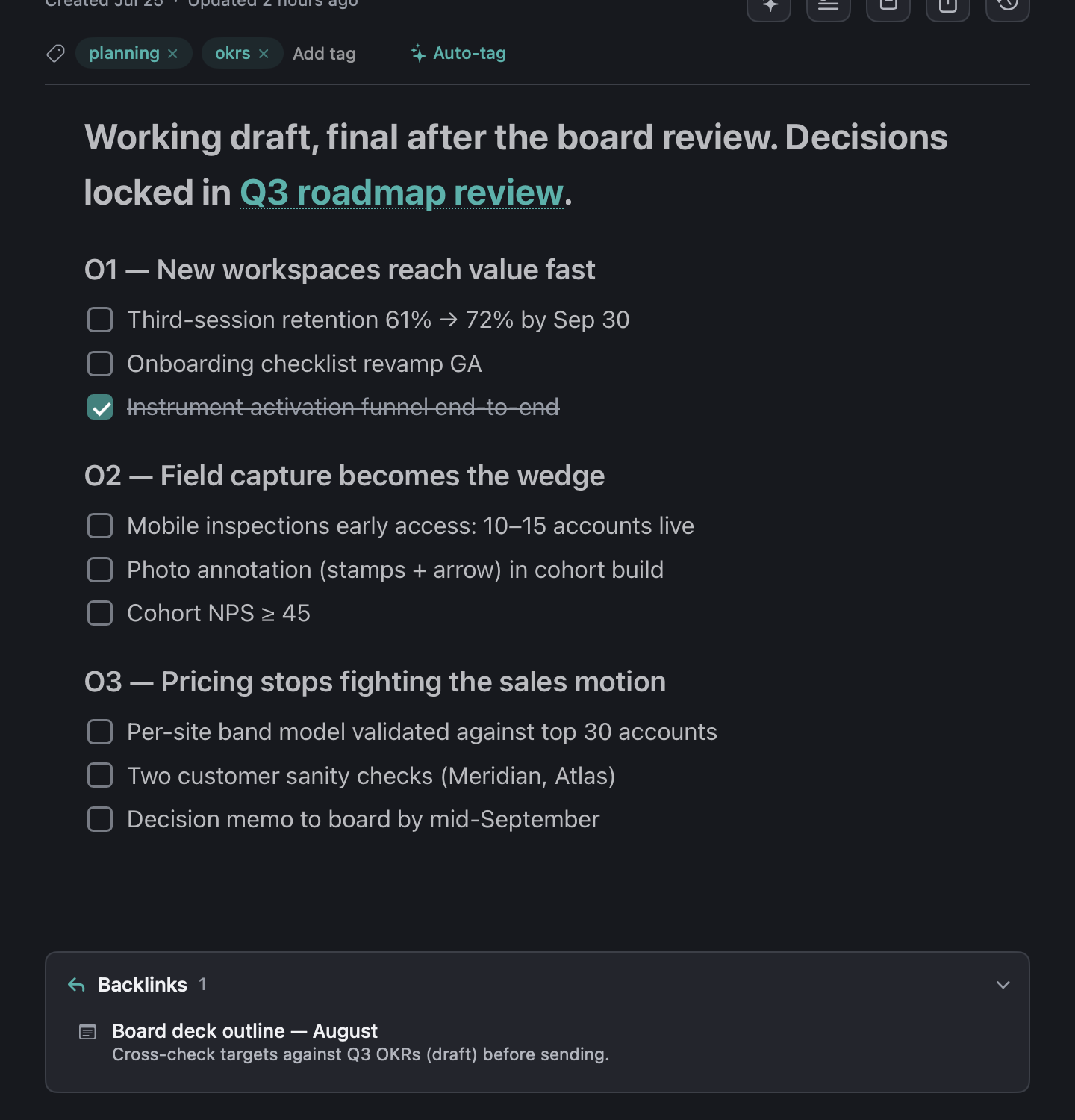
A markdown-native editor for the other twenty-three hours: blocks, tables, images, PDFs, audio, link cards, and a daily note that is always one click away.
- Everything links. Type [[ to link a note or a meeting, and a Backlinks card shows who points here.
- Checklists become tasks. Promote a checklist and it stays linked both ways: rename, remove, or check an item in either place.
- AI that previews first. Clean up, summarize, make concise, continue writing, retitle. Current on the left, proposed on the right. Nothing changes until you apply.
- Tidy leaves your words alone. A separate pass that only fixes formatting, typos, and spacing.
- Version history. Snapshots as you write, restore any of them, and the restore itself is reversible.
- Tags are places. Pin them, refine them with the lens, and save the result as a view.
Tasks
Type the whole thought in one line. Call Mia friday 3pm #work !high every 2 weeks becomes a task in the Work list, due Friday at three, high priority, repeating. The chips under the field show exactly what you are about to get.
- Today is a view, not a list. Tasks keep their homes, and the day is yours to plan.
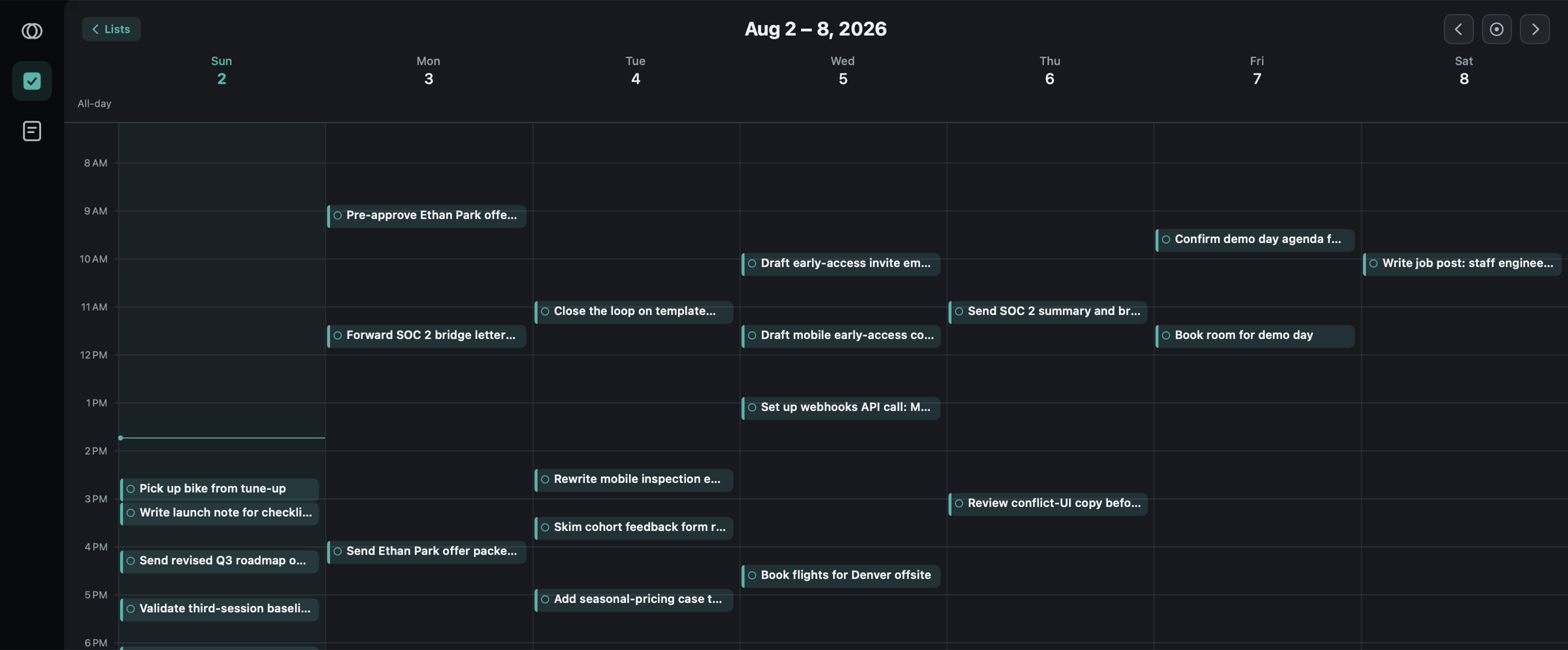
- The week as a grid. Drag a task to another day or time to reschedule it. Your Mac calendar events sit alongside, read-only.
- Reminders that do something. Mark done, snooze ten minutes, or postpone to tomorrow, straight from the notification, even with Bevios closed.
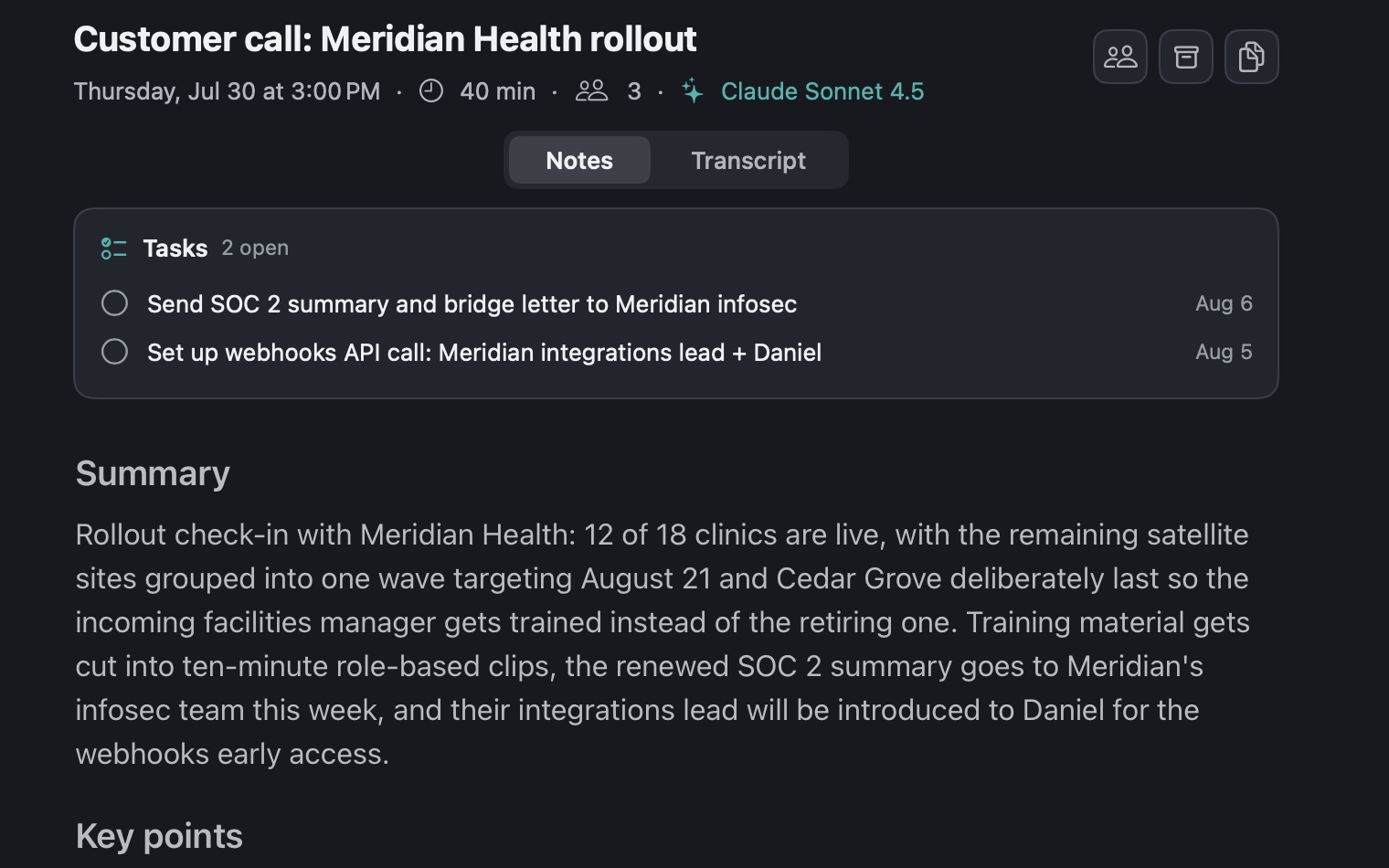
- Meetings file their own follow-ups. Action items land in the From Meetings list.
- Nothing is destroyed by accident. Swipes do not delete, and completed tasks are the archive.
Meetings
Talk, and get the conversation back written up. Bevios hears your side and theirs through the Mac itself, so a video call and a table are the same thing to it.
- Starts with your calendar. Title and attendees fill in from the event, whether you start early, late, or from the menu bar.
- You can see it working. Every stage is named while it runs, so a long meeting never leaves you guessing. The transcript arrives first and the notes fill in behind it.
- Pause and resume. A private aside stays out of the file, and the timestamps stay seamless.
- Stops itself when the call ends. It waits first, so a conversation that carries on after the call drops is never cut off. In person, it only ever asks.
- Offers to help. An optional nudge before a calendar event, or when call software starts using the microphone. Never two nudges for one meeting.
A transcript you can correct
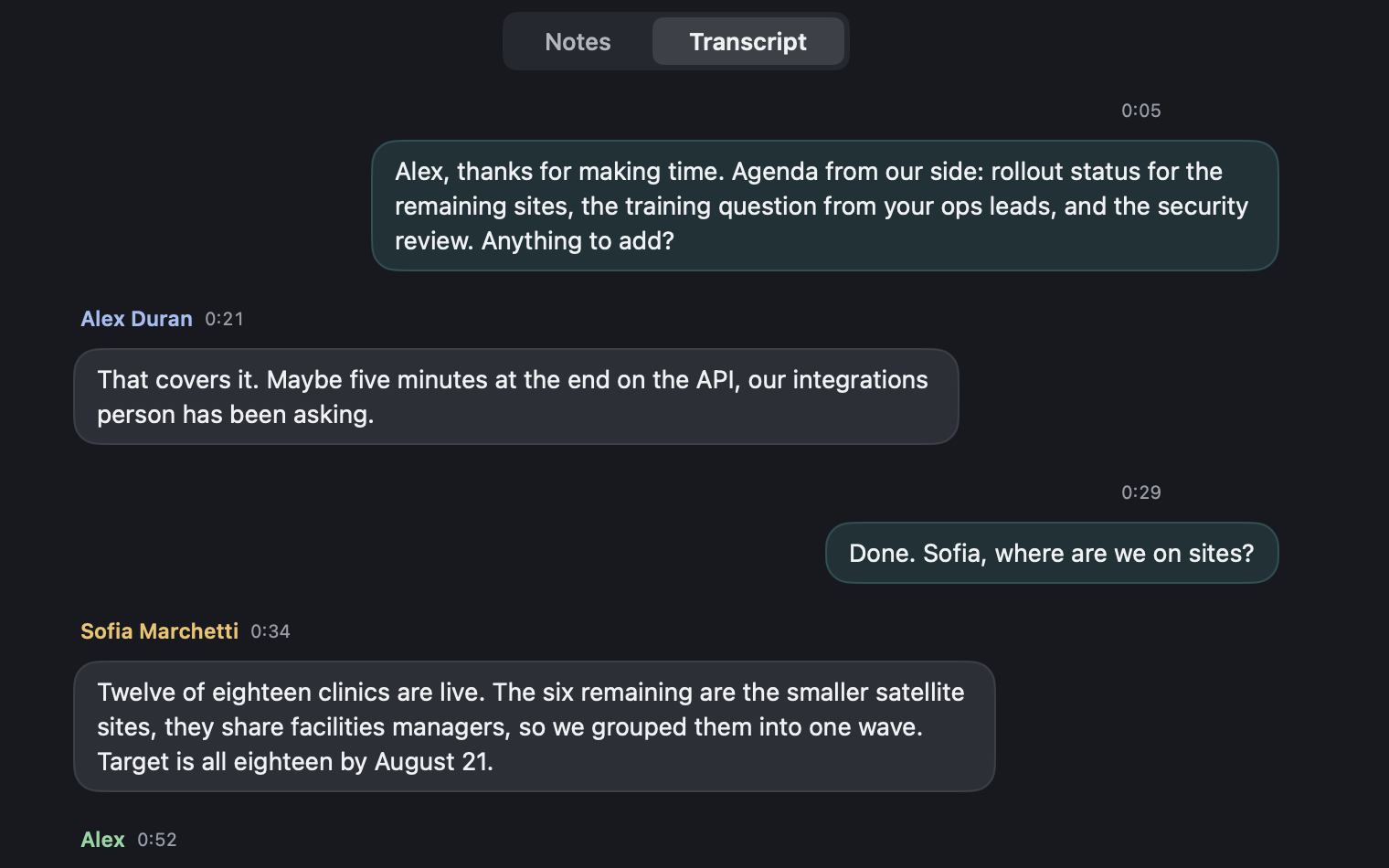
The conversation reads as one bubble per turn, your side on the right, everyone else on the left with a name and a timestamp.
- Teach it your words. Product names, colleagues, acronyms. Terms you add in settings bias the transcription itself, so it stops guessing at the vocabulary your work runs on.
- Fix a turn. Edit the text in place, or reassign it to another speaker.
- Name the speakers once and everything updates instantly, with no second pass over the audio.
- Search the conversation. speaker:, after: and before: filters plus typo-tolerant text. A match shows the line, and clicking it jumps to that moment.
- Copy as markdown. Either pane, one click, straight into whatever you write in next.
Capture from anywhere
⌃⌥Space floats a panel over whatever you are doing, mid-meeting included. Task or note, ⇥ switches.
- Bevios sits in the macOS Share menu: a page, a selection, or an image lands as a note
- New Note from Clipboard from the menu bar icon
- A note draft is never lost, even if the panel closes
Find it in two keystrokes
⌘K opens Quick Open over notes, meetings, open tasks and tags. ⏎ jumps.
- Typo-tolerant text search in every list
- It reads the words inside your images and PDFs, so a screenshot of a receipt is findable by what it says. The reading happens on your Mac
- Filters: #tag, has:checklist, has:image, has:pdf, has:audio, after:, before:
- ⌘[ and ⌘] walk your history like a browser
Nineteen themes, including yours
Eleven of our own, plus eight editor palettes you already run: Nord, Tokyo Night, Dracula, Gruvbox, both Catppuccins, Rosé Pine Dawn and Solarized Light.
- Set a gradient or your own image behind the window
- Every shipped palette clears WCAG AAA for reading text before it ships
- The notes editor follows the theme too
Offline is not an error
Write, capture, complete, tag, delete. It all lands on this Mac and queues on disk until the connection is back.
- The sync cloud in the rail says exactly what is waiting
- Quitting while offline loses nothing
- Two Macs editing at once? Both versions survive as a (conflicted copy)
Help that lives in the app
The same documentation that ships with Bevios opens in a panel next to your work, searchable, with links that drive the app.
- Every feature, every shortcut, written as steps
- Deep links open the right settings pane for you
Keyboard first
⌘1 to ⌘3 switch apps, ⌘N makes the next thing, ⌘, opens settings.
- Reorder the rail and the numbers follow you
- Bevios reopens exactly where you left it
- The window is optional: the menu bar keeps working
And it sits in on the meeting, too.
The part most tools make you bolt on is built in here. You talk, and the write-up is waiting when you stop.
No bot joins the call
Bevios listens through your Mac itself, so nothing turns up in the participant list and nobody has to admit a robot to the meeting. A conversation across a table works exactly like a video call.
The notes write themselves
You get the conversation back in minutes: what was discussed, what was decided, and who owes what, in your words rather than a wall of transcript. A meeting that runs long is never cut off mid-sentence.
The follow-ups are already filed
Whatever you promised is a real task with a real deadline before you have closed the window, sitting in the same place as the rest of your work. Months later, you can still find who said it.

You should always know where your work is.
Two places, and you can see into both: this Mac, and your Bevios account, which keeps every Mac you use in step.
Where your work lives
Every note, transcript and task is written to this Mac first and synced to your account afterwards, so your other Macs agree without anything waiting on the network. It is plain markdown the whole way down, and Settings → Notes hands you all of it whenever you want out.
It syncs, which means it is readable. Your notes, transcripts and tasks sit in your Bevios account, and Bevios can read them: it is not end to end encrypted. A locked note is the tool for anything you want held tighter than that.
Meeting audio is the deliberate exception: it is temporary. It goes up to be transcribed, and the local file is swept on the schedule you pick in Settings → Meetings → Delete local audio: after upload, 7 days, 30 days, or never, and 7 days is the default. The transcript and the notes are what Bevios keeps.
On this Mac
Every edit is written to disk before anything touches the network, so a dropped connection is never a lost thought. Reads come from the local copy first, which is also why the app is quick.
- Audio for a meeting is captured and held on your Mac
- Signing out erases this Mac's local copy, after trying to sync what is pending
- Signing in as a different account wipes the previous one's local copy first
Locked notes
Right-click a note and choose Lock note. From then on it opens behind Touch ID, and it stays out of the places notes usually leak from.
- AI is unavailable on a locked note, even while it is open
- Search matches the title only, never a line of the content
- Backlinks and previews show the title with a padlock
- It relocks on idle, on sleep, and when your screen locks
- It covers this Mac and your other Macs, not the server copy
The questions the help pages get asked.
Does a bot join my meeting?
No. Bevios captures your microphone and your Mac's system audio locally, so there is no extra participant and no invite for anyone to accept. It works the same on a call and across a table.
Which calls does it work with?
Any of them. Because Bevios listens to system audio rather than a platform's API, the call software is irrelevant. Zoom, Google Meet, Microsoft Teams, Webex, Slack, Discord, FaceTime, or two people in a room.
For the optional nudges, Bevios recognizes call software using the microphone and video-call links in your calendar events. Dictation, voice memos and music never trigger a nudge.
What happens to the audio?
It exists to produce the transcript, not as an archive. The meeting audio is uploaded to Bevios to be transcribed, and the local file is swept on the schedule you pick in Settings → Meetings → Delete local audio: after upload, 7 days, 30 days, or never. The default is 7 days.
If processing fails, nothing is deleted. The meeting keeps its audio and offers a retry that resumes from the stage that failed.
Who can read my notes?
You, on any Mac signed into your account. Traffic runs over HTTPS, and your notes, transcripts and tasks live in your Bevios account so they can sync between those Macs, which also means Bevios can read them: it is not end to end encrypted.
A locked note is the tool for anything you want held tighter than that. It opens behind Touch ID and stays out of search content, AI, previews, backlinks, tag counts, exports and on-disk caches on every one of your devices. It does not change where the note is kept: the content and any images in it are uploaded like any other note, so the lock protects the machine side, not the server copy.
Does it work offline?
Yes, for everything except the parts that need a server: writing, creating, capturing, completing, tagging, reordering and deleting all work with no connection. Changes queue durably on disk and deliver in order when you are back, and quitting in the middle loses nothing.
Transcription and the AI actions need the server, since that is where they run.
What if two Macs edit the same note?
Both versions survive. Yours is kept as "‹title› (conflicted copy)" at the top of the list, the original keeps the other Mac's newer version, and a notification tells you where your words went. Bevios never guesses at merging your words, and it never silently overwrites them. Tasks and meeting notes behave the same way.
Can I get my notes out?
Notes are plain markdown all the way down. Export one note as markdown (with your tags in front matter) or as plain text, or export every note at once from Settings → Notes. You can import markdown back in the same way. The copy button on a meeting gives you its notes or transcript as markdown.
Does it write to my calendar?
No. Bevios reads your Mac calendars to name meetings and to lay events alongside your week. Events in the calendar view are display-only, and tasks are never written back to an external calendar. You choose which calendars are visible in Settings → Calendars.
What does it need to run?
A Mac on macOS 15 or later, microphone and system audio permission for meetings, and a Bevios account. Calendar access is optional and only affects meeting detection and the week view.
How do I get in?
Bevios is invite-only. Any Bevios user can generate an invite code from the rail, so the usual route is asking someone who already uses it. Signing up takes the code, your email, and a password, then a confirmation link in your inbox.
Bevios is invite-only.
Not a waitlist, and not a queue you join. Everyone already using Bevios has codes to give away, so the way in is to ask someone who has it.
You get back a code and a link, and signing up takes about a minute from there.
Ask for an invite Or ask whoever sent you this link.
The address is hello@bevios.com.
Download for macOS Version 0.4.2. You need a code to sign in.
- Platform macOS 15 or later
- Meetings need Microphone and system audio
- Calendar access Optional