
Write it down.
Find it when you need it.
Bring in your existing notes, then keep writing. Arrange blocks, add images and tables, organize with categories and pins, and turn checklists into linked tasks.
- Import notes and organize with categories and pins
- Rearrange blocks, images and tables
- Checklists that become real tasks
Create tasks that link back to the note.
Explore Tasks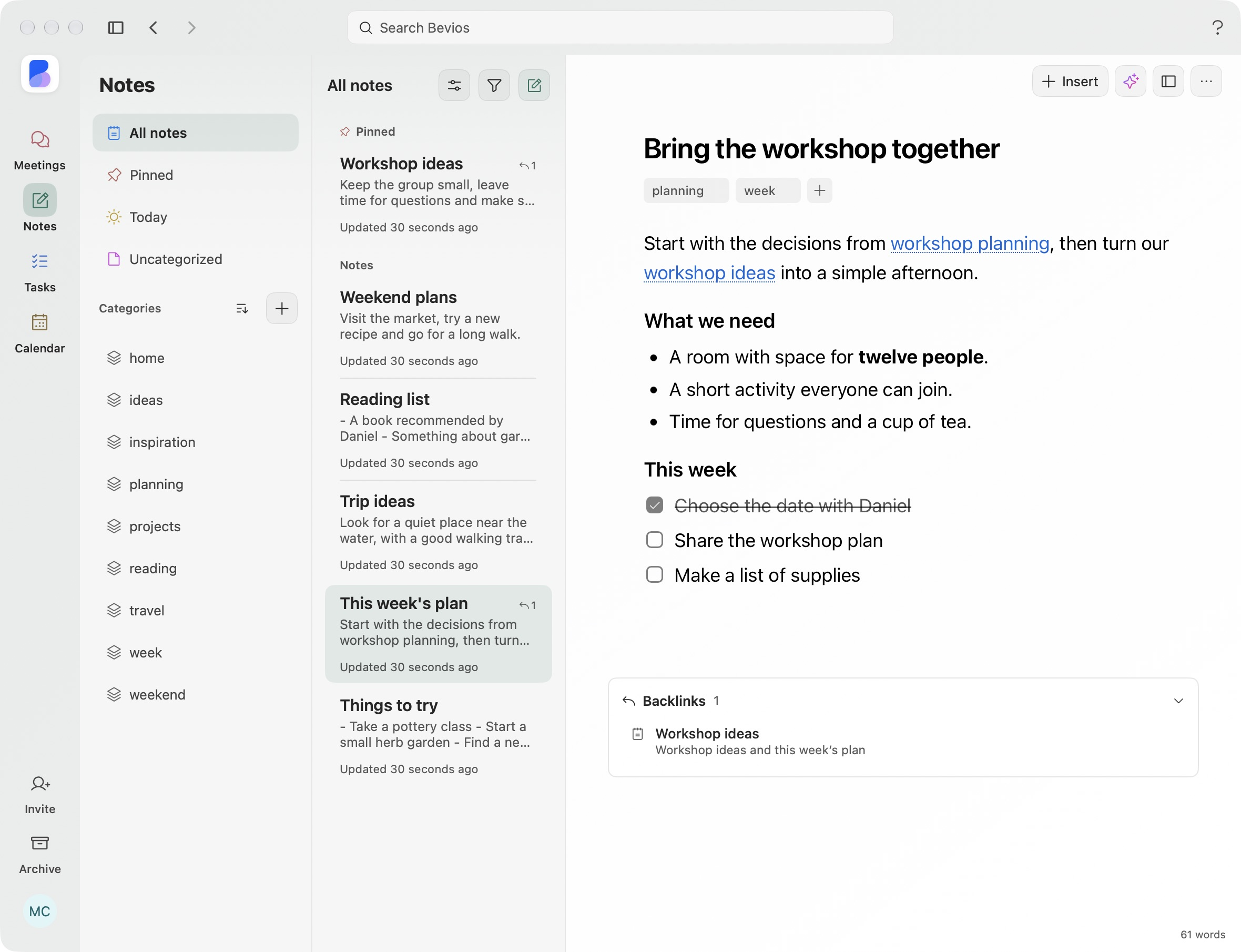
This week’s plan with categories, linked documents and a checklist.
Organize notes with categories, pins and saved views.
Find a project plan with categories and search. Pin it for tomorrow, or save a filtered view for the notes you return to often.
- Categories that overlapA project note can belong to planning and work at the same time.
- A view for the way you workCombine categories, search and update-date filters. Save the result as a view.
- Keep important notes closeKeep pinned notes together. Drag categories into your preferred order or sort them by name or activity.
Link related notes and meetings.
Link a note to another idea or to a meeting. Backlinks give you a way back, and checklists carry the next steps into Tasks.
- Links in the writingBring the original conversation into a project plan.
- A way backSee the notes that mention the document you have open.
- Checklists become tasksUpdate the linked item from the note or your task list.
Write, rearrange and refine.
Move paragraphs, lists and tables with a block grip. Paste an image, resize it and keep writing. When a draft needs another pass, review an AI revision before applying it.
- Your draft, your decisionOrganize thoughts, clean up, shorten or summarize. Review body changes before applying, and use Undo afterward.
- Earlier versions stay availableReview and restore an earlier draft when you need it.
- Start where the idea startsUse Quick Capture, a daily note or a template. Keep editing offline and export as Markdown or plain text.
Your existing notes have a place here.
Import from Apple Notes, an Obsidian vault, Bear, Notion or an Evernote export. Choose files and folders for supported formats.
Choose what to copy, preview the content and review warnings before importing. Imports are one-time copies. Your originals stay unchanged.
Formatting and attachment support vary by source. Review any items that could not be copied.
Download for Mac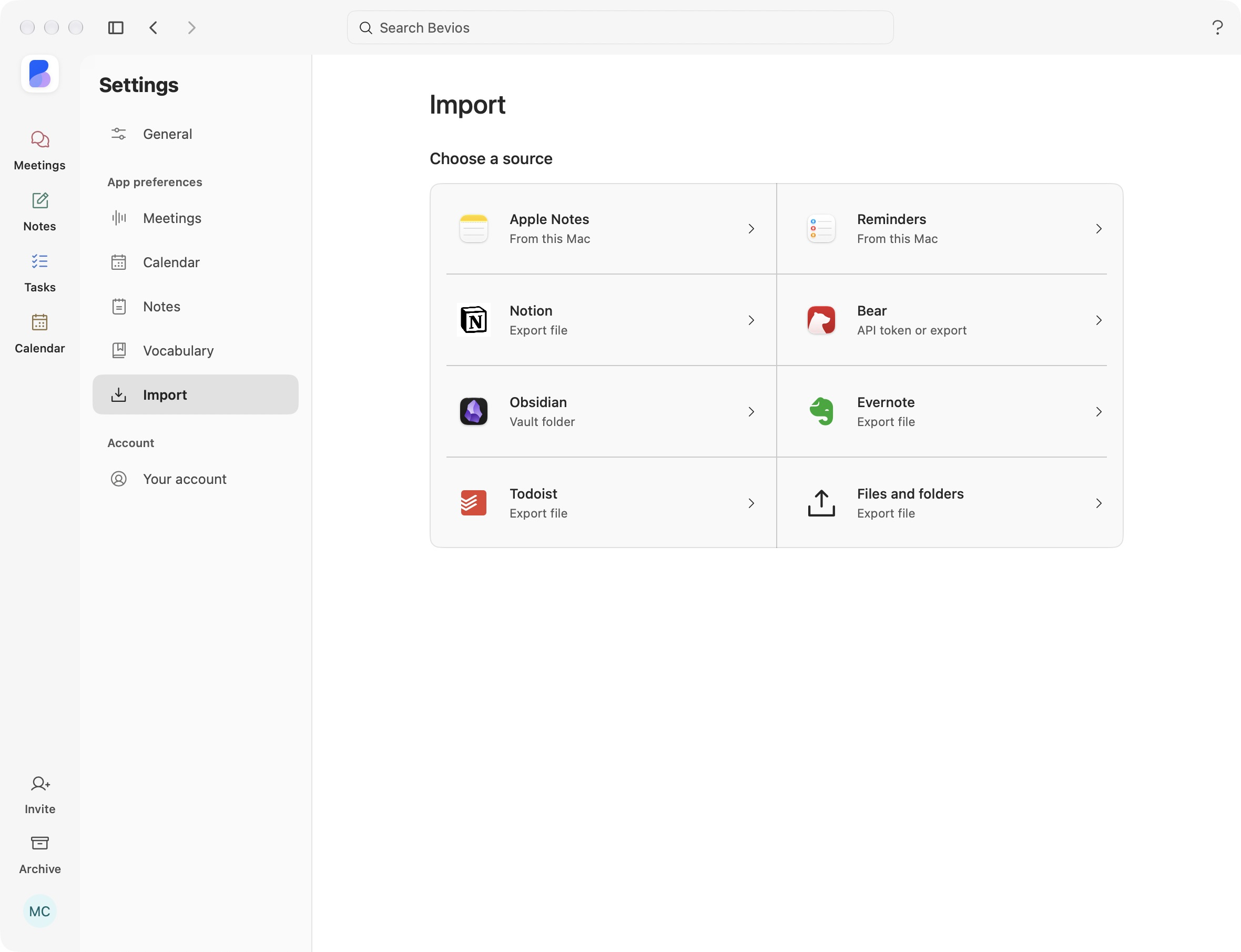
A little more detail.
Can I keep a note in more than one category?
Yes. A note can belong to several categories without making duplicate notes.
Can I write offline and export my notes?
Notes and task edits save on your Mac first and sync when you reconnect. Export notes as Markdown or plain text. Attachments are not included in the export.
Bring your thinking into your workspace.
The idea, the plan and the follow-through stay connected.
Download for MacmacOS 14.2 or later · Free during beta
See how it connects