
Organize what
needs doing.
Bring tasks in from Reminders or Todoist. Organize work with lists, tags and subtasks, capture dates as you type, and keep the note or meeting behind each follow-up.
- Lists, cross-list tags and nested subtasks
- Type dates, priorities and repeat rules
- Keep the original context one click away
Choose when to work on a task.
Explore Calendar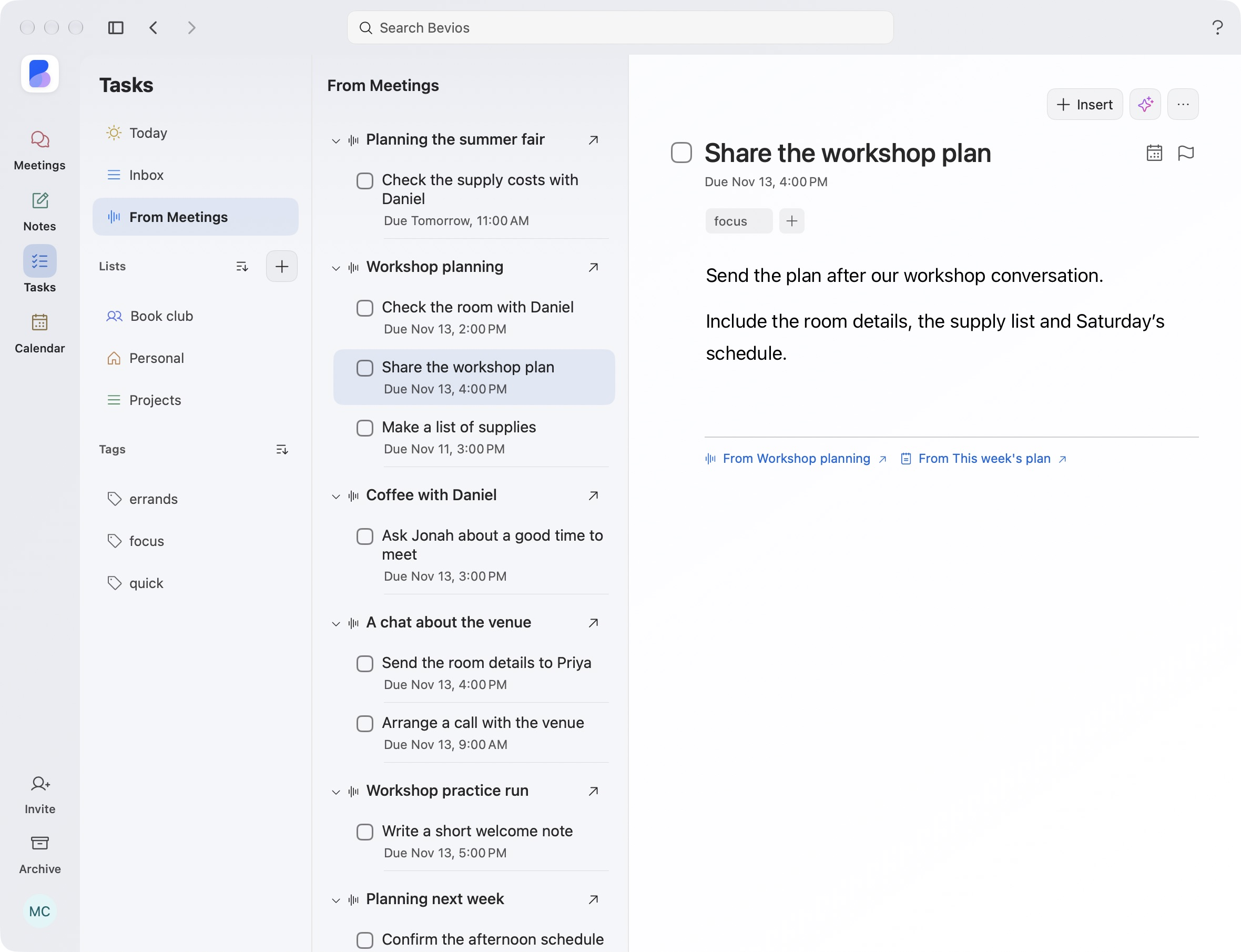
A task linked to its source note.
Organize with lists. Find related tasks with tags.
See what needs your attention across projects and personal work. Lists give each task a home, while tags and saved views bring related work together.
- Today keeps the original listPlanning the day does not move a task out of its project.
- Tags work across listsA tag such as @review brings related work together. Rename and manage tags from the sidebar.
- Priorities and saved filtersNarrow by due date and tags, save a view, and arrange your lists in the order you use them.
Type a task with its date, priority and repeat rule.
Type the task as it comes to mind. Bevios recognizes dates, lists, tags, priorities and repeat rules so you can review them before adding it.
- Dates and timesTomorrow, Friday or a specific time can become the due date.
- Repeating workGive a routine task a daily, weekly or custom cadence.
- Review before addingThe chips show what the task will become. You can change the details first.
Keep subtasks and supporting details together.
Break work into subtasks, keep supporting details with it and return to the meeting or note that started it.
- A place for the smaller stepsNest subtasks under the work they belong to.
- Reminders you can act onMark done, snooze or postpone from a task notification.
- Completed work is still yoursFind and reopen completed work. Undo a deletion from its confirmation message.
Bring the work already on your list.
Copy selected lists from Apple Reminders or import Todoist projects with an available connection or CSV export.
Choose what to copy, preview the content and review warnings before importing. Imports are one-time copies. Your originals stay unchanged.
Formatting and attachment support vary by source. Review any items that could not be copied.
Download for Mac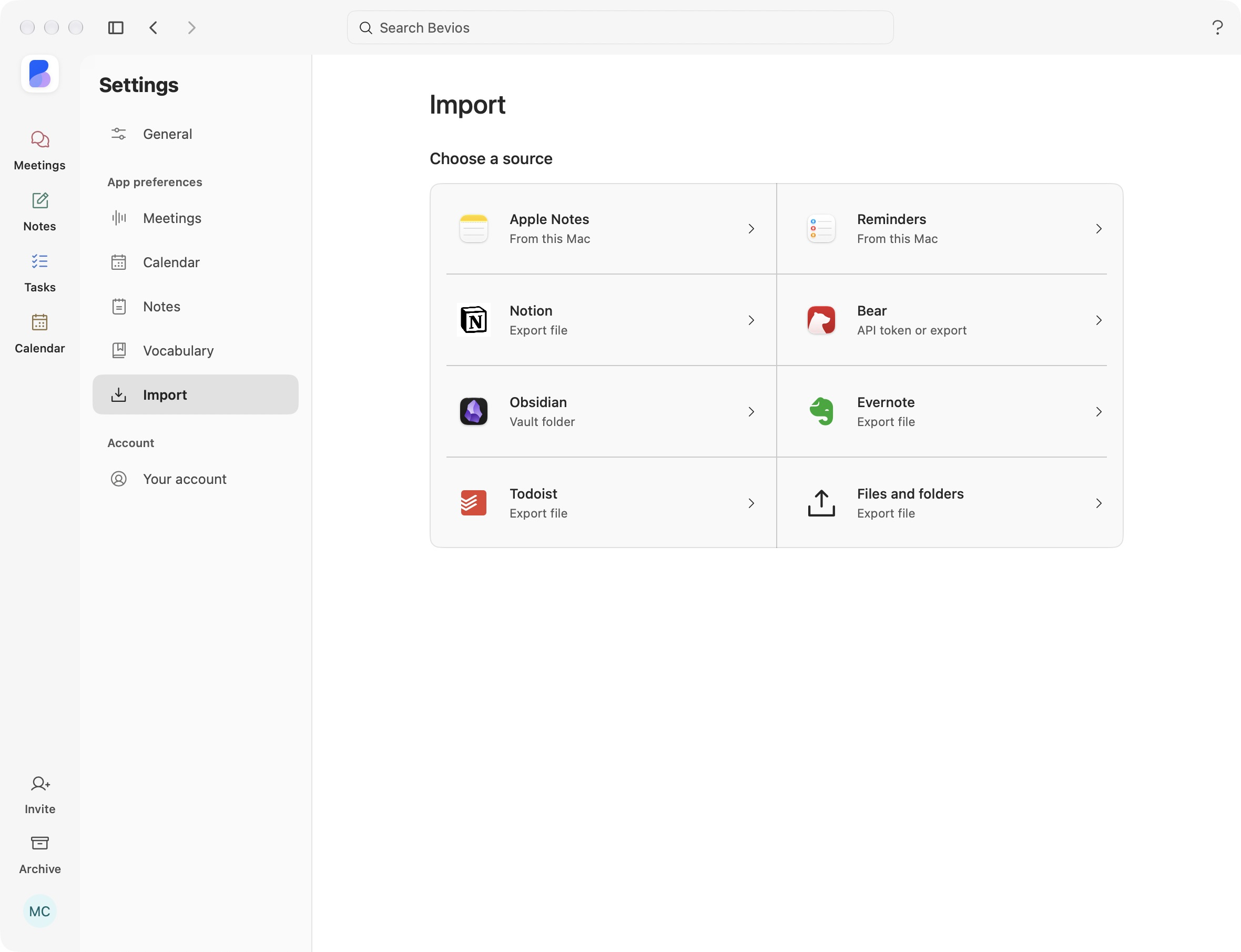
A little more detail.
Does Today move tasks out of their lists?
No. Today is a view across your lists. Each task keeps its home list and its source links.
Can I repeat a task from a meeting?
Move a task from From Meetings into one of your own lists before setting a repeat rule.
Bring the next step into your workspace.
Keep the context behind the work and the time to do it.
Download for MacmacOS 14.2 or later · Free during beta
See how it connects